
Instabridge skips the asking: name the WiFi, see its key
A WiFi key finder that pairs a nearby network's name with its password, with no hotspot map to scroll.
Open the key finderFree to use with the network names your phone already lists.
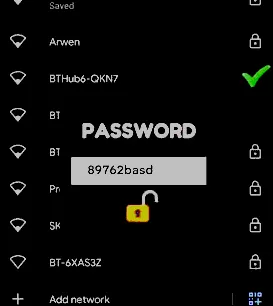
With Instabridge: the network and its password, side by side.
Without it: the network shows up, the password field stays empty.
Five steps, and you see each one happen
Your phone already lists the network. What it doesn't have is the password, and asking for it is the slow part.
1/5Find the name
Open the WiFi list on your phone and note the network name exactly, capitals and dashes included.
2/5Open the finder
Press the button at the top of this page to reach the Instabridge key finder.
3/5Type it in
Enter that network name and the few details the finder asks for.
4/5Read the key
The password appears next to the network name, so you know which key belongs to which network.
5/5Join
Go back to your WiFi list, select the network, paste the password and connect.
The key finder in short
- You type
- The network name as your phone lists it, plus the details the finder asks for.
- You see
- That network's password, next to its name.
- Where it helps
- At a café, the station, or a friend's house.
- What you need
- A phone that already shows the network in its WiFi list.
- Before you join
- At a shop or a station, check the exact network name with staff or on the posted sign.
Step 1 gives you the name; the finder takes it from there.